Containers
A set of 1 or more processes that are isolated from the rest of the system
Docker
Docker is an open platform for developing, shipping, and running applications. Docker enables you to separate your applications from your infrastructure so you can deliver software quickly. With Docker, you can manage your infrastructure in the same ways you manage your applications. By taking advantage of Docker's methodologies for shipping, testing, and deploying code, you can significantly reduce the delay between writing code and running it in production.
apt install curl nano wget -y
wget -qO- https://raw.githubusercontent.com/friendlyngeeks/pi-hosted/master/install_docker.sh | bash
reboot -f now # applies docker group perms to current user
Homepage
A modern, fully static, fast, secure fully proxied, highly customizable application dashboard with integrations for over 100 services and translations into multiple languages. Easily configured via YAML files or through docker label discovery.
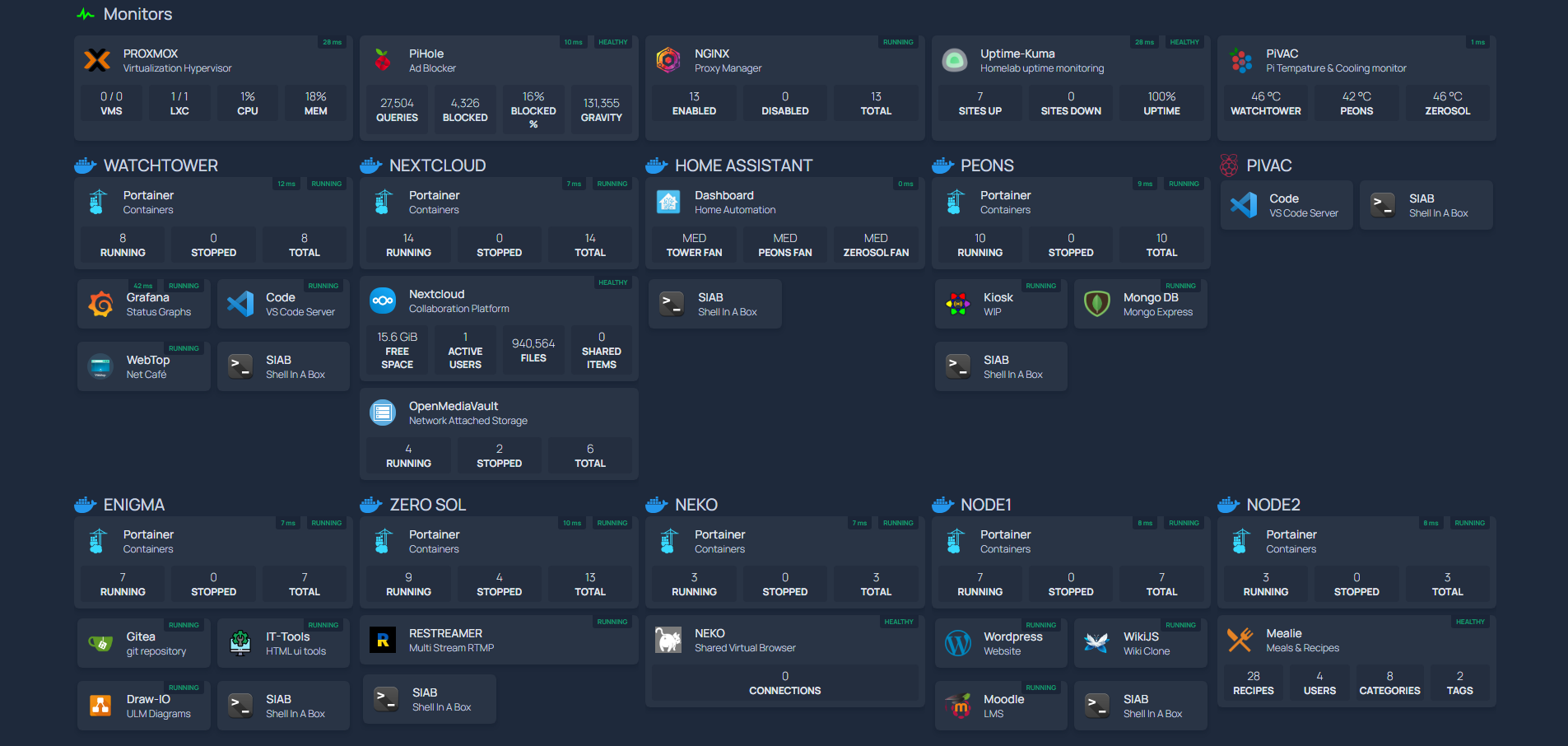
Tabs
Proxmox
Docker-Compose.yml
version: "3.3"
services:
  homepage:
    image: ghcr.io/gethomepage/homepage:latest
    container_name: homepage
    ports:
      - 3015:3000
    volumes:
      - /portainer/Files/AppData/Config/Homepage:/app/config # Make sure your local config directory exists
      - /portainer/Files/AppData/Config/icons:/app/public/icons # Make sure your local config directory exists
      - /var/run/docker.sock:/var/run/docker.sock:ro # optional, for docker integrations
    restart: unless-stopped
Use username@pam!Token ID as the username (e.g api@pam!homepage) setting and Secret as the password setting.
Allowed fields: ["vms", "lxc", "resources.cpu", "resources.mem"].
You can set the optional node setting when you want to show metrics for a single node. By default it will show the average for the complete cluster.
Config.yml
widget:
  type: proxmox
  url: https://proxmox.host.or.ip:8006
  username: api_token_id
  password: api_token_secret
  node: pve-1 # optional
Proxmox - Widget Generate API Token
- Navigate to the Proxmox portal, click on Datacenter
- Expand Permissions, click on Groups
- Click the Create button
- Name the group something informative, like api-ro-users
- Click on the Permissions "folder"
- Click Add -> Group Permission
- Path: /
- Group: group from bullet 4 above
- Role: PVEAuditor
- Propagate: Checked
- Expand Permissions, click on Users
- Click the Add button
- User name: something informative like api
- Realm: Linux PAM standard authentication
- Group: group from bullet 4 above
- Expand Permissions, click on API Tokens
- Click the Add button
- User: user from bullet 8 above
- Token ID: something informative like the application or purpose like homepage
- Privilege Separation: Checked
- Go back to the "Permissions" menu
- Click Add -> API Token Permission
- Path: /
- API Token: select the Token ID created in Step 10
- Role: PVE Auditor
- Propagate: Checked
Pelican
Docker-Compose.yml
Homepage Widget:
- Login into Panel
- API Keys > create key
- Servers: Read
- Nodes: Read
- Discription: Homepage Widget
- Copy key into homepage services.yaml
Pterodactyl
Docker-Compose.yml
Nextcloud
Docker-Compose.yml
#---
# SOURCE | https://github.com/nextcloud/docker/blob/master/README.md
#---

services:
  nextcloud-aio-mastercontainer:
    image: nextcloud/all-in-one:latest
    init: true
    restart: always
    container_name: nextcloud-aio-mastercontainer # This line is not allowed to be changed as otherwise AIO will not work correctly
    volumes:
      - nextcloud_aio_mastercontainer:/mnt/docker-aio-config # This line is not allowed to be changed as otherwise the built-in backup solution will not work
      - /var/run/docker.sock:/var/run/docker.sock:ro # May be changed on macOS, Windows or docker rootless. See the applicable documentation. If adjusting, don't forget to also set 'WATCHTOWER_DOCKER_SOCKET_PATH'!
    ports:
      - 80:80 # Can be removed when running behind a web server or reverse proxy (like Apache, Nginx, Cloudflare Tunnel and else). See https://github.com/nextcloud/all-in-one/blob/main/reverse-proxy.md
      - 8080:8080
      - 8443:8443 # Can be removed when running behind a web server or reverse proxy (like Apache, Nginx, Cloudflare Tunnel and else). See https://github.com/nextcloud/all-in-one/blob/main/reverse-proxy.md
    # environment: # Is needed when using any of the options below
      # - TRUSTED_PROXIES="192.168.X.XXX" #  A space-separated list of trusted proxies. CIDR notation is supported for IPv4.
      # - AIO_DISABLE_BACKUP_SECTION=false # Setting this to true allows to hide the backup section in the AIO interface. See https://github.com/nextcloud/all-in-one#how-to-disable-the-backup-section
      # - APACHE_PORT=11000 # Is needed when running behind a web server or reverse proxy (like Apache, Nginx, Cloudflare Tunnel and else). See https://github.com/nextcloud/all-in-one/blob/main/reverse-proxy.md
      # - APACHE_IP_BINDING=127.0.0.1 # Should be set when running behind a web server or reverse proxy (like Apache, Nginx, Cloudflare Tunnel and else) that is running on the same host. See https://github.com/nextcloud/all-in-one/blob/main/reverse-proxy.md
      # - BORG_RETENTION_POLICY=--keep-within=7d --keep-weekly=4 --keep-monthly=6 # Allows to adjust borgs retention policy. See https://github.com/nextcloud/all-in-one#how-to-adjust-borgs-retention-policy
      # - COLLABORA_SECCOMP_DISABLED=false # Setting this to true allows to disable Collabora's Seccomp feature. See https://github.com/nextcloud/all-in-one#how-to-disable-collaboras-seccomp-feature
      # - NEXTCLOUD_DATADIR=/mnt/ncdata # Allows to set the host directory for Nextcloud's datadir. ⚠️⚠️⚠️ Warning: do not set or adjust this value after the initial Nextcloud installation is done! See https://github.com/nextcloud/all-in-one#how-to-change-the-default-location-of-nextclouds-datadir
      # - NEXTCLOUD_MOUNT=/mnt/ # Allows the Nextcloud container to access the chosen directory on the host. See https://github.com/nextcloud/all-in-one#how-to-allow-the-nextcloud-container-to-access-directories-on-the-host
      # - NEXTCLOUD_UPLOAD_LIMIT=10G # Can be adjusted if you need more. See https://github.com/nextcloud/all-in-one#how-to-adjust-the-upload-limit-for-nextcloud
      # - NEXTCLOUD_MAX_TIME=3600 # Can be adjusted if you need more. See https://github.com/nextcloud/all-in-one#how-to-adjust-the-max-execution-time-for-nextcloud
      # - NEXTCLOUD_MEMORY_LIMIT=512M # Can be adjusted if you need more. See https://github.com/nextcloud/all-in-one#how-to-adjust-the-php-memory-limit-for-nextcloud
      # - NEXTCLOUD_TRUSTED_CACERTS_DIR=/path/to/my/cacerts # CA certificates in this directory will be trusted by the OS of the nexcloud container (Useful e.g. for LDAPS) See See https://github.com/nextcloud/all-in-one#how-to-trust-user-defined-certification-authorities-ca
      # - NEXTCLOUD_STARTUP_APPS=deck twofactor_totp tasks calendar contacts notes # Allows to modify the Nextcloud apps that are installed on starting AIO the first time. See https://github.com/nextcloud/all-in-one#how-to-change-the-nextcloud-apps-that-are-installed-on-the-first-startup
      # - NEXTCLOUD_ADDITIONAL_APKS=imagemagick # This allows to add additional packages to the Nextcloud container permanently. Default is imagemagick but can be overwritten by modifying this value. See https://github.com/nextcloud/all-in-one#how-to-add-os-packages-permanently-to-the-nextcloud-container
      # - NEXTCLOUD_ADDITIONAL_PHP_EXTENSIONS=imagick # This allows to add additional php extensions to the Nextcloud container permanently. Default is imagick but can be overwritten by modifying this value. See https://github.com/nextcloud/all-in-one#how-to-add-php-extensions-permanently-to-the-nextcloud-container
      # - NEXTCLOUD_ENABLE_DRI_DEVICE=true # This allows to enable the /dev/dri device in the Nextcloud container. ⚠️⚠️⚠️ Warning: this only works if the '/dev/dri' device is present on the host! If it should not exist on your host, don't set this to true as otherwise the Nextcloud container will fail to start! See https://github.com/nextcloud/all-in-one#how-to-enable-hardware-transcoding-for-nextcloud
      # - NEXTCLOUD_KEEP_DISABLED_APPS=false # Setting this to true will keep Nextcloud apps that are disabled in the AIO interface and not uninstall them if they should be installed. See https://github.com/nextcloud/all-in-one#how-to-keep-disabled-apps
      # - TALK_PORT=3478 # This allows to adjust the port that the talk container is using. See https://github.com/nextcloud/all-in-one#how-to-adjust-the-talk-port
      # - WATCHTOWER_DOCKER_SOCKET_PATH=/var/run/docker.sock # Needs to be specified if the docker socket on the host is not located in the default '/var/run/docker.sock'. Otherwise mastercontainer updates will fail. For macos it needs to be '/var/run/docker.sock'
    # networks: # Is needed when you want to create the nextcloud-aio network with ipv6-support using this file, see the network config at the bottom of the file
      # - nextcloud-aio # Is needed when you want to create the nextcloud-aio network with ipv6-support using this file, see the network config at the bottom of the file
    # # Uncomment the following line when using SELinux
    # security_opt: ["label:disable"]

  # # Optional: Caddy reverse proxy. See https://github.com/nextcloud/all-in-one/blob/main/reverse-proxy.md
  # # You can find further examples here: https://github.com/nextcloud/all-in-one/discussions/588
  # caddy:
  #   image: caddy:alpine
  #   restart: always
  #   container_name: caddy
  #   volumes:
  #     - ./Caddyfile:/etc/caddy/Caddyfile
  #     - ./certs:/certs
  #     - ./config:/config
  #     - ./data:/data
  #     - ./sites:/srv
  #   network_mode: "host"

volumes: # If you want to store the data on a different drive, see https://github.com/nextcloud/all-in-one#how-to-store-the-filesinstallation-on-a-separate-drive
  nextcloud_aio_mastercontainer:
    name: nextcloud_aio_mastercontainer # This line is not allowed to be changed as otherwise the built-in backup solution will not work

# # Optional: If you need ipv6, follow step 1 and 2 of https://github.com/nextcloud/all-in-one/blob/main/docker-ipv6-support.md first and then uncomment the below config in order to activate ipv6 for the internal nextcloud-aio network.
# # Please make sure to uncomment also the networking lines of the mastercontainer above in order to actually create the network with docker-compose
# networks:
#   nextcloud-aio:
#     name: nextcloud-aio # This line is not allowed to be changed as otherwise the created network will not be used by the other containers of AIO
#     driver: bridge
#     enable_ipv6: true
#     ipam:
#       driver: default
#       config:
#         - subnet: fd12:3456:789a:2::/64 # IPv6 subnet to use
HomeAssist
Docker-Compose.yml
Unifi
Docker-Compose.yml
PiHole
VM Recommended Specs -
vCores - 1
Memory - 512Mib -1Gb
Storage - 15-20Gb
Issues -
Portainer error 500 - binding to port53
There are cases in which you need to use port 53, like to usednsmasq, dns server etc. which is used by systemd-resolved. to get rid of systemd-resolved safely
sudo systemctl stop systemd-resolved # stop systemd-resolved
nano /etc/systemd/resolved.conf #UNCOMMENT DNS=8.8.8.8 | DNSStubListener=no
sudo ln -sf /run/systemd/resolve/resolv.conf /etc/resolv.conf
only accessible on ip not hostname
check logs for default first time password
SET NEW PASSWORD | portainer > terminal > sudo pihole -a -p
Docker-Compose.yml
version: "3"
services:
  pihole-unbound:
    image: cbcrowe/pihole-unbound:latest
    container_name: pihole-unbound
    volumes:
      - /portainer/Files/AppData/Config/PiHole-Unbound:/etc/pihole
      - /portainer/Files/AppData/Config/PiHole-Unbound/DNS:/etc/dnsmasq.d
    ports:
      - 53:53/tcp
      - 53:53/udp
      - 1010:80/tcp
      - 4443:443/tcp
    restart: unless-stopped
    environment:
      TZ: America\Chicago
      #PIHOLE_DOCKER_TAG: ""
      #PHP_ERROR_LOG: /var/log/lighttpd/error-pihole.log
      #CORS_HOSTS: ""
      VIRTUAL_HOST: PIHOLE
      WEBPASSWORD: n0tRand0m
Nginx
Docker-Compose.yml
version: "3"
services:
  app:
    image: jc21/nginx-proxy-manager:latest
    container_name: nginx-proxy-manager
    volumes:
      - /portainer/Files/AppData/Config/nginx-proxy-manager/data:/data
      - /portainer/Files/AppData/Config/nginx-proxy-manager/letsencrypt:/etc/letsencrypt
    depends_on:
      - stats
    ports:
      # These parameters are separated by a colon and indicate <external>:<internal> respectively.
      - 80:80
      - 443:443
      - 81:81
    restart: unless-stopped

  stats:
    image: justsky/goaccess-for-nginxproxymanager:latest
    restart: unless-stopped
    environment:
      PUID: ${PUID}
      PGID: ${PGID}
      TZ: ${TZ}
      SKIP_ARCHIVED_LOGS: "${SKIP_ARCHIVED_LOGS}"
      BASIC_AUTH: "${BASIC_AUTH}"
      BASIC_AUTH_USERNAME: ${BASIC_AUTH_USERNAME}
      BASIC_AUTH_PASSWORD: ${BASIC_AUTH_PASSWORD}
    ports:
      - 7880:7880

    volumes:
      - /portainer/Files/AppData/Config/nginx-proxy-manager/data/logs:/opt/log:ro
Kuma
Docker-Compose.yml
#---
# source | https://github.com/louislam/uptime-kuma
#---

version: '3'
services:
  uptime-kuma:
    image: louislam/uptime-kuma:1
    container_name: uptime-kuma
    volumes:
      - uptime-kuma:/app/data
    ports:
      # These parameters are separated by a colon and indicate <external>:<internal> respectively.
      - 3001:3001
    restart: unless-stopped
Mealie
Docker-Compose.yml
#---
# source | https://codeopolis.com/posts/how-to-install-mealie-on-docker/
#---

# The default username and password for this application is:
# Username: [email protected]
# Password: MyPassword

version: "3.7"
services:
  mealie:
    image: ghcr.io/mealie-recipes/mealie:latest #
    container_name: mealie
    ports:
        # These parameters are separated by a colon and indicate <external>:<internal> respectively.
        - "9925:9000"
    deploy:
      resources:
        limits:
          memory: 1000M
    volumes:
      - mealie-data:/portainer/Files/AppData/Config/Mealie/
    environment:
    # Set Backend ENV Variables Here
      - ALLOW_SIGNUP=false
      - PUID=1000
      - PGID=1000
      - TZ=America/Chicago
      - MAX_WORKERS=1
      - WEB_CONCURRENCY=1
      - BASE_URL=https://example.com
    restart: always

volumes:
  mealie-data:
    driver: local
Restream
Docker-Compose.yml
#---
# source | https://github.com/datarhei/restreamer
#---

version: '3'
services:
  restreamer:
    image: datarhei/restreamer:rpi-latest
    container_name: restreamer
    restart: unless-stopped
    privileged: true
    volumes:
      - /opt/restreamer/config:/core/config
      - /opt/restreamer/data:/core/data
    ports:
      # These parameters are separated by a colon and indicate <external>:<internal> respectively.
      - 8080:8080
      - 8181:8181
      - 80:1935
      - 1936:1936
      - 6000:6000/udp
Neko
Docker-Compose.yml
version: "3.4"
services:
  neko:
    image: "ghcr.io/m1k1o/neko/arm-chromium:latest"
    container_name: neko
    hostname: neko
    restart: "unless-stopped"
    shm_size: "3gb" # >= total host RAM / 2
    ports:
      # These parameters are separated by a colon and indicate <external>:<internal> respectively.
      - "8080:8080"
      - "52000-52100:52000-52100/udp"
    # this is important since we need a GPU for hardware acceleration alternatively mount the devices into the docker.
    privileged: true
    cap_add:
      - SYS_ADMIN
    volumes:
      - "/etc/timezone:/etc/timezone:ro"
      - "/etc/localtime:/etc/localtime:ro"
    environment:
      NEKO_PASSWORD_ADMIN: passwd123
      NEKO_PASSWORD: notpassword
      NEKO_EPR: 52000-52100
      NEKO_SCREEN: 1280x720@30
      NEKO_MAX_FPS: 0
      NEKO_ICELITE: 1
      NEKO_FILE_TRANSFER_ENABLED: true
      NEKO_NAT1TO1: "192.168.X.XXX" # This host ip4 address
      NEKO_BROADCAST_PIPELINE: |
        flvmux name=mux
          ! rtmpsink location={url} pulsesrc device={device}
          ! audio/x-raw,channels=2
          ! audioconvert
          ! voaacenc
          ! mux. ximagesrc display-name={display} show-pointer=false use-damage=false
          ! video/x-raw,framerate=30/1
          ! videoconvert
          ! queue
          ! x264enc bitrate=3500 bframes=0 key-int-max=60 byte-stream=true tune=zerolatency speed-preset=ultrafast pass=cbr
          ! mux.
      NEKO_BROADCAST_URL: "http://example.com"
OctoPrint
Portainer
Portainer is a complete, open-source server management platform for enterprise virtualization. It tightly integrates the KVM hypervisor and Linux Containers (LXC), software-defined storage and networking functionality, on a single platform. With the integrated web-based user interface you can manage VMs and containers, high availability for clusters, or the integrated disaster recovery tools with ease.
Trouble Shooting
ALPINE LINUX SHELL IN A BOX MISSING
After spinning up an Alpine Linux LXC you may find the traditional way of installing Shell-In-Box and that is because Alpine does not provide it in the core apt repository.One-off install straight from edge/testing (keeps your system on stable)
apk add shellinabox \
  --repository=https://dl-cdn.alpinelinux.org/alpine/edge/testing
rc-update add shellinaboxd default
rc-service shellinaboxd start
# use prox/putty to add user
adduser {USERNAME}